From “we should optimize” to a ranked plan.
Beyond waste, CloudOptify recommends the structural moves — rightsizing, commitment coverage, lifecycle cleanup — each ranked by estimated savings so the next action is always obvious.
Rightsizing
Resources that are demonstrably bigger than their workload, with suggested targets.
Commitment opportunities
Where reservations or savings plans would beat on-demand pricing.
Ranked by value
Every recommendation carries an estimated monthly saving — biggest first.
What the engine
actually does.
Three independent scan pipelines. Each can run individually or as part of a coordinated full scan. Results are confidence-scored, de-duplicated, and tracked with first-seen / last-seen lifecycle — so you know what is genuinely new versus what has been sitting there for months.
Queries Azure Resource Graph and AWS service APIs directly for idle, orphaned, and overprovisioned resources. All Azure checks are collapsed into a single union query per tenant to stay well within API rate limits. AWS checks run in parallel per account.
Analyses 90 days of stored cost snapshots to surface patterns invisible in raw billing data: spend anomalies, weekend cost accumulation, orphaned service lines, top movers, and rightsizing opportunities. Runs on-demand against the data already in the database — no additional cloud API calls.
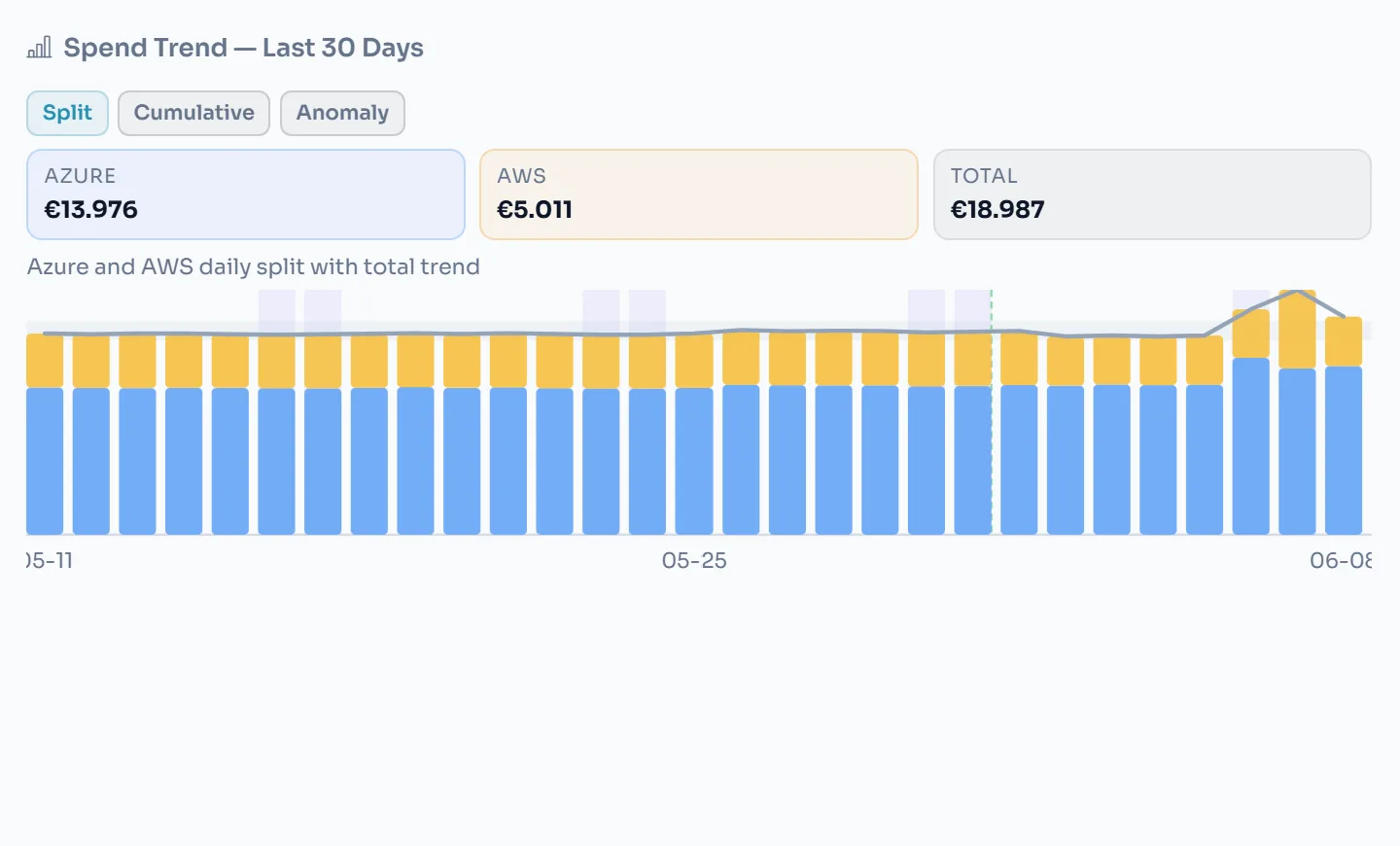
Seasonal model that learns weekday / weekend spend patterns and baseline variance. Flags deviations that exceed the expected range — not just a percentage threshold. A 40% spike on a quiet Friday is flagged; a 40% spike on a month-end billing cycle is not.
Identifies services with consistent weekend spend above a configurable baseline. Development and staging environments that run 24/7 are the most common source.
Finds accounts or services with recent spend that suddenly drops to zero — a signal that a resource was deleted without notification, or cost data stopped arriving.
Services with the largest absolute or percentage cost increase period-over-period. Critical movers (>200% change) are separated from high / medium movers. Each finding includes the prior-period and current-period cost.
Identifies compute services with sustained steady-state spend above a floor and recommends a 1-year commitment at typical cloud discount rates (30%).
Combines cost trends with real Azure Monitor / CloudWatch CPU and memory percentile data (p50, p95, p99). Flags resources where spend is significant but utilisation evidence suggests they are overprovisioned.
Eight specialist scanners run in parallel across your cloud estate, each targeting a distinct FinOps practice area — from commitment coverage and rightsizing to storage lifecycle and Kubernetes allocation. Results are de-duplicated by a stable fingerprint key and upserted per scan, so the recommendation set always reflects the current state.
Flags resources with significant spend and flat or declining usage trends. Cross-referenced with real p95 CPU/memory metrics where available.
Identifies steady-state compute spend above a materiality floor and recommends 1-year Reserved Instance or Savings Plan coverage at ~30% discount.
Flags accounts with high storage spend where lifecycle tiering (moving infrequently-accessed objects to cold/archive tiers) would reduce costs meaningfully.
Monitors Reserved Instances and Savings Plans expiring in 30 / 60 / 90 days so renewals do not fall through.
Surfaces accounts or subscriptions with untagged spend above a threshold — untagged resources cannot be allocated to cost centres or teams.
Identifies accounts with disproportionately high bandwidth spend relative to compute — a signal of data-intensive workloads that may benefit from CDN or architecture review.
Flags clusters with high spend per pod metric — clusters with few pods relative to their compute cost may be underutilised or misconfigured.
Identifies regions with significant spend where a lower-carbon equivalent region exists — relevant for sustainability reporting and ESG commitments.
When Run All is triggered, the four steps execute in this fixed order — cost data is fully synced before Analysis, Waste, and FinOps (which depend on fresh cost and inventory data) begin. Each step can also run independently on demand. A global top-bar indicator shows the scan status on every page until completion.
Related features
See it on your numbers.
Early access — a new platform, onboarding teams now.